KDPBuilder vs Canva for KDP Publishing

Skip the theory? Generate a free book preview in about a minute — no signup, no card.
Try it freeIf you are comparing KDPBuilder vs Canva, the real question is not “Which editor is easier?” It is “Which workflow gets a book from idea to upload-ready files without turning cover sizing, interior formatting, metadata, and revisions into separate production chores?”
Canva is a strong visual design tool for authors who already understand KDP specs and want to build individual assets themselves. KDPBuilder is the stronger fit when you want a complete KDP publishing package: manuscript, cover, interior, metadata, ebook file, and print-ready files prepared as one coordinated book project.
Here is the honest verdict: Canva can help you make attractive pieces. KDPBuilder is built for the finished publishing package.
KDPBuilder vs Canva: the quick verdict
Canva is a flexible design tool; KDPBuilder is a done-for-you AI publishing studio. That difference matters because KDP publishing is not only about making something attractive on screen. It is also about producing a file set that matches Amazon’s technical requirements and looks cohesive as a printed book.
Canva works best when the author already understands KDP trim sizes, bleed, margins, cover calculators, interior formatting, and licensing. KDPBuilder is stronger when the goal is a complete, professional book package rather than designing isolated assets. In other words, kdpbuilder vs canva is not a contest between two design apps; it is a choice between assembling a book yourself and building a publish-ready product with guided structure.
If you want to compare the workflow side by side, use the Compare Publishing Tools page to see how each option handles the full KDP build.
Choose Canva if you only need design control
Choose Canva when you want to make one specific asset yourself, such as a front cover, a simple workbook page, or a social media graphic for launch day. It is a practical option if you already know how to size a KDP file, handle exports, and check every production detail manually.
For example, if you are making a 6 x 9 journal and you already know the page count, margin settings, and cover wrap dimensions, Canva can be a fast way to lay out the artwork. The tool gives you control, but that control also means you must verify everything before upload.
Choose KDPBuilder if you need a publish-ready package
Choose KDPBuilder when you want the manuscript, cover, interior, and metadata to work together as one book. That matters because readers do not buy “a cover” or “a formatted interior”; they buy the finished book experience. KDPBuilder is designed for that outcome.
Use it when you want fewer moving parts, cleaner file preparation, and a book that looks intentionally built rather than pieced together from separate templates. If your priority is publication outcome, not just design freedom, then KDPBuilder has the stronger fit. You can review what is included on the KDPBuilder Pricing page before deciding which workflow matches your project.
Canva book cover KDP: what it does well
Canva is easy for creating front covers, simple journals, workbooks, and promotional graphics. Its drag-and-drop editor helps beginners produce acceptable visual layouts quickly, especially when they need a clean title treatment, an image panel, or a simple branded look.
Canva can export PDFs, but authors must still set the correct dimensions, spine width, bleed, and back-cover layout. That is why many search for a KDP cover creator or cover creator: they want speed, but speed alone does not guarantee a correct upload file.
Front-cover design
Canva is strong for front-cover composition. You can place a focal image, experiment with typography, and move elements until the title hierarchy feels right. If your cover is simple and does not need advanced print production work, that flexibility is useful.
A common example is a nonfiction workbook with one photo, one headline, and one subtitle. In that case, Canva gives you enough control to test a few versions quickly before exporting a final design.
Basic journals and low-content interiors
Canva also works for basic interiors such as lined pages, dot-grid pages, habit trackers, and simple prompts. For low-content books, the page design can be repetitive and straightforward, which makes Canva a practical tool for building a clean interior layout.
Still, even a simple interior needs consistent margins and clean export settings. A page that looks fine in the editor can still fail usability expectations if the trim area, spacing, or pagination is off.
Fast mockups and marketing graphics
Canva is useful for cover mockups, ad images, lead magnet graphics, and launch-day posts. These are not the same as KDP production files, but they are helpful for presenting the book visually before or after publishing.
If you need a quick image for your sales page or email announcement, Canva is often the faster choice. It is a good support tool, even when it is not the whole publishing system.
Where Canva KDP templates have limitations
Canva templates can look generic because many sellers use the same layouts, fonts, and visual styles. That sameness matters when your goal is a book that feels distinct in a crowded category. This is one of the biggest canva kdp templates limitations: the template may be easy to use, but it may not help you stand out.
Templates also do not solve manuscript development, market positioning, metadata, title strategy, category fit, or interior usability. Those are publication decisions, not just design decisions.
Template sameness
One of the quickest ways to make a book feel assembled instead of designed is to rely on a template with obvious stock typography and overused layout patterns. If the same arrangement appears across multiple books in your niche, your cover may blend in instead of signaling a clear brand identity.
A useful test is to ask whether your cover still looks intentional after you remove the stock image. If the design collapses without the template framing it, the layout may be too generic for a competitive book market.
Cover sizing and spine risk
For full-wrap covers, Canva users still need exact calculations for trim size, page count, paper type, bleed, and spine width. That is where mistakes happen. A cover can look polished on screen and still be wrong in production if the wrap dimensions are off by even a small amount.
KDPBuilder covers are produced as full wraps with front, spine, and back at 300 DPI. Spine width is computed from the actual page count and paper type, then checked before delivery. Browse real cover output
That technical check is the difference between a design that just looks good and a cover that is built for upload. It matters even more when the book is revised after the cover is made. A page-count change can alter the spine, which means the cover must be updated too.
Interior formatting gaps
Canva can create pages, but it does not automatically turn those pages into a clean, printable interior package. You still need to think about page order, margins, headers, page numbers, readable spacing, and export quality.
If you are building a workbook or nonfiction guide, those details affect usability. Readers notice when text feels cramped, pages shift in alignment, or repeated elements do not line up from one spread to the next.
Licensing and originality concerns
Canva assets can be used commercially when the license permits it, but authors still need to verify rights, usage restrictions, and whether an element appears in too many other books. That is not a warning against Canva; it is a normal publishing diligence step.
Always check whether the elements you used are allowed for your intended format and whether the final composition feels original enough for your brand. Originality is less about one single icon or font and more about the overall presentation.
Why KDP cover sizing is where many Canva projects fail
Real search demand around amazon kdp cover calculator, kdp calculator, kdp cover size calculator, book cover calculator, and kdp cover calculator shows where the technical friction lives: authors want the dimensions right before they upload. That is because a KDP paperback cover is not just a front image; it is a full wrap file with back cover, spine, front cover, bleed, and safe zones.
Cover dimensions change based on trim size, page count, paper color, and binding type. A 120-page paperback on white paper does not use the same wrap as a 240-page paperback on cream paper.
Amazon KDP cover calculator basics
An Amazon KDP cover calculator helps you determine the overall wrap size needed for your paperback. The key inputs are trim size, page count, paper type, and whether the design includes bleed. Without those inputs, the cover may not fit the book block correctly.
The practical rule is simple: do the math before you design. If you design first and calculate later, you may have to rebuild the entire cover.
Trim size, bleed, and spine width
For KDP paperbacks, Amazon commonly requires a single print-ready PDF containing the back cover, spine, and front cover, with dimensions based on trim size, page count, paper type, and bleed. The spine width changes with page count, and the cover must account for any bleed if images or backgrounds extend to the edge.
Full-wrap cover spine text is only allowed when the book has enough pages for a printable spine. If the spine is too narrow, text may not be readable or may not be appropriate at all. This is why exact sizing matters before you start placing titles and author names on the spine.
Why a beautiful cover can still need revision
A cover can look professional and still miss KDP requirements if the file size is wrong, the text sits in the safe zone incorrectly, or the bleed is not handled properly. In other words, design quality and file preparation are separate checks.
KDPBuilder is positioned to reduce that technical upload friction by delivering files designed for the publishing workflow. That is a meaningful difference when your goal is fewer disconnected revisions and a cleaner path to upload.
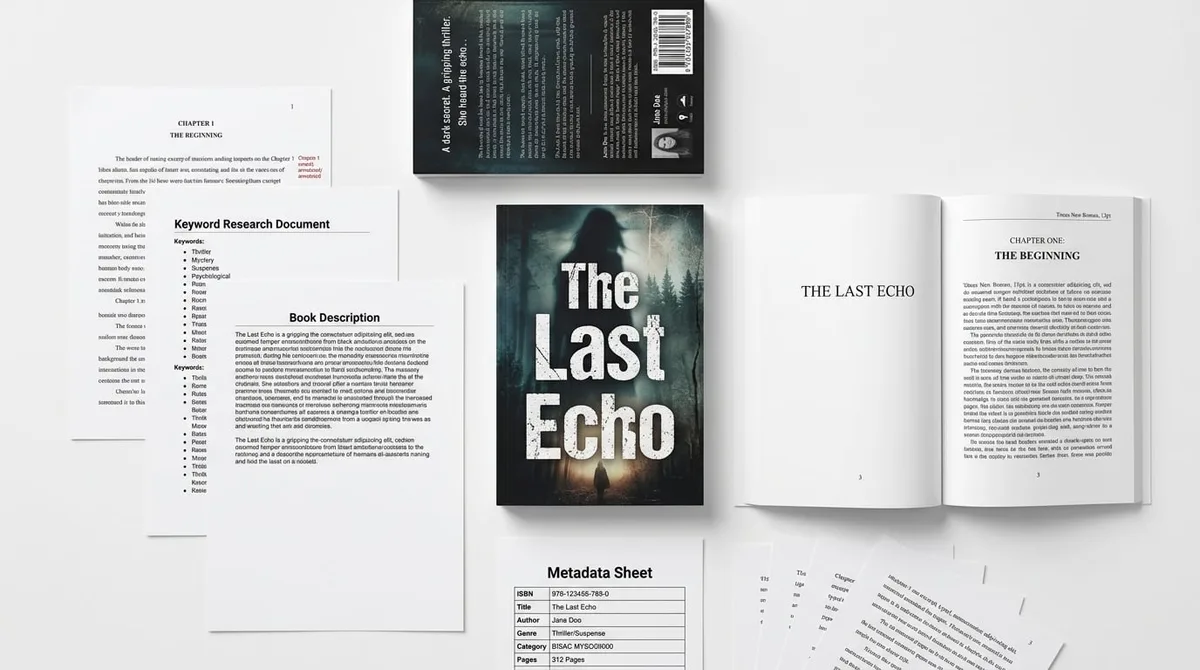
A KDPBuilder publishing package includes the print-ready interior PDF, full-wrap cover at 300 DPI, ebook file, and a metadata sheet with title, subtitle, description, 7 keywords, and category picks—the same core materials authors prepare for KDP’s upload flow. See what’s in a publishing package
Insider pro-tip: before you polish fonts and images, lock the book specs first. Trim size, page count, and paper type should be fixed before you build the cover, because those three inputs change the spine math and can force a redesign.
Interior design: Canva pages vs publishable books
Canva can create attractive pages, but scaling a few pages into a clean full book interior is a different task. Interiors need consistent margins, headers, pagination, page order, readability, and correct export settings. That is true whether you are making a guide, a workbook, or a low-content book.
For activity books, puzzle books, journals, and coloring books, the design must also support the user experience. A good interior is not just visually neat; it has to be comfortable to use page after page.
Low-content and activity book interiors
Low-content books often seem easy because the pages repeat, but repetition exposes formatting flaws quickly. If the margins drift, the lines do not align, or the spacing is inconsistent, the reader sees it on every page.
For journals and activity books, think in terms of a system: one page master, one spacing rule, one margin rule, and one export standard. That consistency is what turns a page design into a usable book.
Coloring books and AI-generated art risks
For interior-heavy books, people also search for tools such as coloring book maker, coloring book ai, ai coloring book generator, and kdp coloring book generator. Those tools can help create art or page concepts, but they do not automatically guarantee that the resulting book is cohesive, printable, or commercially useful.
If you use AI-generated art, check for line clarity, print suitability, and consistency across the full manuscript. A coloring book still needs a readable, pleasant user experience, and the interior should feel like one designed product rather than a stack of unrelated images.
Readability and user experience
Readable interiors use margins, headings, and spacing as functional design elements. That matters in nonfiction because readers need to scan, pause, and move through content easily.
For example, a cookbook-style guide may need more white space and stronger section breaks than a simple workbook. The layout should support the content, not compete with it.
Full packages: where KDPBuilder separates from Canva
Canva helps make assets; KDPBuilder builds the book package. That is the core difference. A finished KDP book requires more than a cover file and a few interior pages. It needs a manuscript, design direction, metadata, and file preparation that all point to the same outcome.
Stop publishing books that look generated. Start building books that look designed. The issue is not whether a tool can create pages. The issue is whether the entire book feels cohesive from first impression to final page.
Idea to publish-ready files
KDPBuilder is meant to support the path from idea to publish-ready files. That means the concept, structure, and presentation are considered together instead of being handled as disconnected tasks.
For a nonfiction guide, that may mean shaping the outline, cover direction, interior layout, and final file export in one workflow. For a low-content title, it may mean building the cover, interior, and metadata so the book feels complete before upload.
Manuscript, cover, interior, and metadata alignment
Cover, interior, manuscript, and metadata should be handled together because each affects the buyer’s expectations. If the cover promises one type of content and the interior delivers another, the book feels inconsistent. If the metadata is vague, the book may not attract the right reader.
Alignment matters in practical steps:
- Define the book type and reader first.
- Match the title and subtitle to the content promise.
- Design the cover for that exact positioning.
- Format the interior for the actual reading or use experience.
- Prepare the final files so they are consistent at upload.
Designed books vs generated-looking books
Generated-looking books often show mismatched fonts, awkward spacing, random asset choices, or a cover that does not seem to belong to the interior. Designed books feel unified. They have one visual logic from cover to table of contents to final page.
That is where KDPBuilder separates itself from Canva. Canva can help you create the pieces. KDPBuilder is built to organize the pieces into a finished product.
Pricing comparison: free design tool or publishing investment?
Do not frame Canva as bad because it is cheaper; frame it as a different category of tool. Canva’s low cost is attractive if the author has design judgment and KDP production knowledge. In that case, the tool is a budget-friendly way to make specific assets.
KDPBuilder costs more because it replaces multiple steps: concept development, design direction, formatting, metadata, and file preparation. That package approach changes the comparison from “which editor is cheaper?” to “which workflow gets me to a finished book more efficiently?”
When Canva is the cheaper option
Canva is the cheaper option when you already know exactly what you are doing and only need a tool for execution. If you can handle sizing, export settings, and compliance checks yourself, you may not need a more comprehensive publishing system.
That can make sense for a one-off journal, a simple promo graphic, or a lightweight test project where you are comfortable doing the technical work manually.
When KDPBuilder is the better investment
KDPBuilder becomes the better investment when you value time, consistency, and a lower-friction production process. If you need a book package that is coherent from cover to interior to metadata, the broader workflow may be worth it.
The real cost of a weak production workflow is usually rework: fixing files, resizing covers, tightening interiors, rewriting metadata, and trying to make disconnected pieces feel like one book. KDPBuilder is built to reduce that kind of production drag.
If you want current package scope, review KDPBuilder Pricing before comparing the tools on cost alone. If you are still deciding how KDPBuilder fits into your stack, the KDPBuilder vs BookBolt: Workflow Comparison article is a useful next read.
| Category | Canva | KDPBuilder |
|---|---|---|
| Primary use | Design tool | AI publishing studio |
| Best for | DIY asset creation | Finished KDP package |
| Technical setup | Manual | Reduced friction |
| Scope | Isolated pages or graphics | Cover, interior, manuscript, metadata |
| Outcome focus | Design control | Publish-ready book package |
Which should you choose?
Use a simple decision table when comparing your use case. The best choice depends on whether you need a single design asset or a complete book package. If your goal is a polished file set that can move into KDP with less technical work, KDPBuilder is the more complete option.
| Use case | Better fit | Why |
|---|---|---|
| DIY cover | Canva | Good if you already know KDP specs and only need design control |
| Journal | Canva or KDPBuilder | Canva works for simple interiors; KDPBuilder is better when you want the full package aligned |
| Coloring book | KDPBuilder | Better for consistent interiors and print-ready workflow support |
| Puzzle book | KDPBuilder | Helpful when cover, interior, and metadata need to stay coordinated |
| Nonfiction guide | KDPBuilder | Useful for manuscript, cover, and metadata alignment |
| Brand-quality series | KDPBuilder | Better for repeatable presentation across multiple titles |
| Full launch package | KDPBuilder | Cleaner end-to-end build with fewer disconnected steps |
Canva is appropriate for experienced DIY publishers creating simple assets. KDPBuilder is appropriate for authors, entrepreneurs, and publishers who want a finished KDP product that looks professional.
Use Canva when...
Use Canva when you want direct control over layout details and you are comfortable checking every print requirement yourself. It works well when the book is simple, the budget is tight, and the final file only needs a narrow set of design actions.
If you already understand trim size, spine width, bleed, and margins, Canva can be efficient. If you do not, the learning curve may be steeper than expected.
Use KDPBuilder when...
Use KDPBuilder when your priority is the finished book, not just the assets. It is the better choice if you want the manuscript, interior, cover, and metadata handled as one publishing system instead of separate chores.
That is especially useful if you are building a professional brand, launching multiple books, or trying to avoid the stop-start workflow that comes from fixing one production issue at a time.
Compare KDPBuilder with other publishing tools
If you are still evaluating tools, compare the full workflow instead of only the editor screen. Ask what each option does for the manuscript, cover sizing, interior formatting, and upload preparation. That is the level where the real difference shows up.
For a broader decision tree, the KDPBuilder Alternatives: When to Choose Each guide can help you decide whether to stay with DIY tools, a partial workflow, or a full publishing package.
Related comparisons for serious KDP publishers
For low-content and research-tool workflows, compare the KDPBuilder vs BookBolt workflow comparison to see where each tool fits in the process. If you are deciding between manuscript generation and full book development, read KDPBuilder vs ChatGPT for KDP Publishing next.
Those comparisons help you choose a workflow based on the book you want to publish, not just the tool you already know how to open.
FAQ
Is Canva good enough for Amazon KDP covers?
Yes, Canva can be good enough for Amazon KDP covers if you know the correct trim size, bleed, spine width, and export settings. It is a practical design tool, but it does not automatically solve the technical side of KDP production. If you want full-wrap accuracy, you still need to calculate the cover dimensions before you start designing.
Can I use Canva templates for KDP books?
Yes, you can use Canva templates for KDP books, but you should review originality, commercial licensing, and whether the layout fits your specific book. Templates are helpful for speed, yet they do not handle manuscript strategy, metadata, or file compliance. That is why templates are only one part of the publishing process.
What are the main Canva KDP templates limitations?
The main limitations are template sameness, manual sizing, and the fact that templates do not create a complete book package. You still need to manage trim size, bleed, margins, cover wrap math, and interior usability yourself. In short, the template helps with design, but not with the full publishing workflow.
Do I still need an Amazon KDP cover calculator if I use Canva?
Yes. Canva is the design surface, not the calculation tool. For KDP paperbacks, the cover must fit the exact trim size, page count, paper type, and bleed settings, so the calculator remains useful even if the artwork is created in Canva.
Is KDPBuilder better than Canva for coloring books and activity books?
KDPBuilder is usually the stronger option if you want a complete coloring or activity book package rather than just page designs. These books depend on consistent interiors, readable spacing, and coordinated cover-to-interior presentation. Canva can still be used, but the author must manage more of the production work manually.
Which is better for a full KDP package: KDPBuilder or Canva?
KDPBuilder is better for a full KDP package because it is built around the finished book, not just isolated assets. Canva is useful when you want design control and already know the production requirements. If your goal is a complete, professional, publish-ready book, KDPBuilder is the more aligned choice.
Final recommendation
If you only need a front cover, launch graphic, or simple DIY layout, Canva is a sensible tool. If you want a full KDP publishing package with the manuscript, cover, interior, and metadata built together, choose KDPBuilder.
Ready to stop stitching together separate assets? Review KDPBuilder Pricing to confirm the right package, then register when you are ready to build a publish-ready book instead of managing every production detail yourself.
Turn this idea into a book — free sample
Type a book idea and we'll generate a real cover preview in about a minute. No signup, no card.