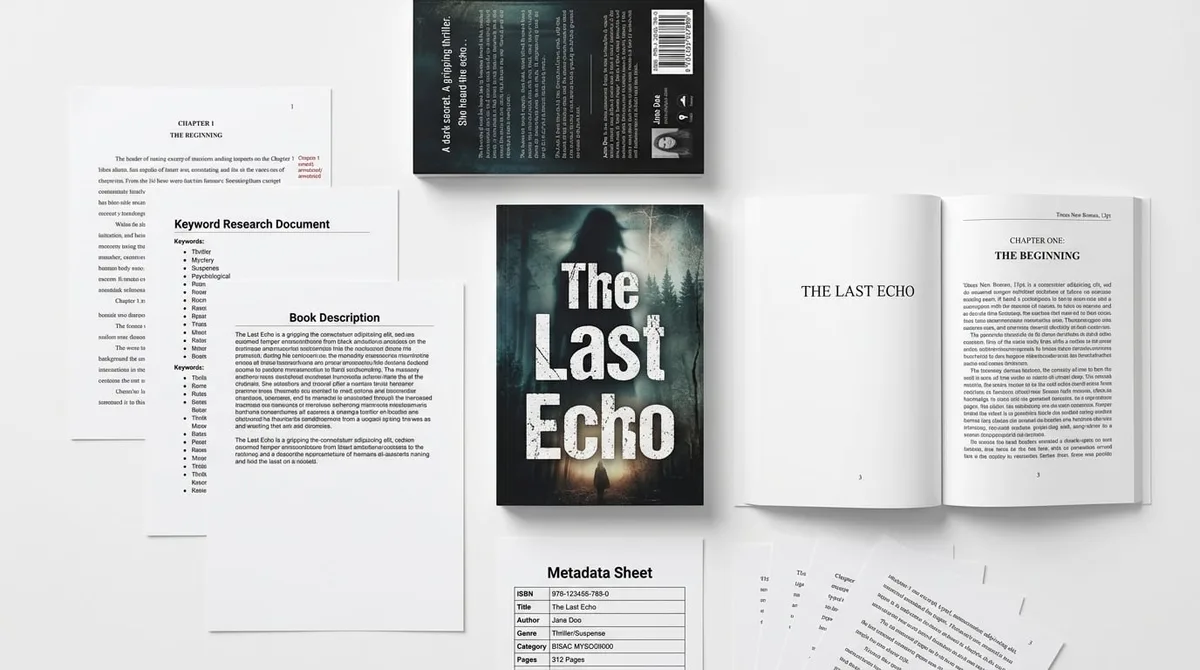
Idea to Published Book: Real KDP Walkthrough

Skip the theory? Generate a free book preview in about a minute — no signup, no card.
Try it freeAn idea is not a book until it survives production. To move from idea to published book, you need to define the reader promise, shape the manuscript, choose trim size and page count, design the interior, build a full-wrap cover, prepare metadata, run file QA, and export the exact PDFs KDP expects. The dangerous shortcut is not using AI; it is shipping generic, unchecked files that look assembled instead of published.
This walkthrough follows one sample project all the way through the KDP production path. You will see what gets decided first, what gets calculated, what files are created, and what must be checked before the package is ready for upload. The standard is simple: the final book should look designed, useful, and coherent before it ever reaches the KDP dashboard.
The one-line idea we are turning into a book
What the idea is
Start with one concrete concept, not a vague category. Examples: a 60-page guided workbook for first-time Etsy sellers, a short meal-prep guide for night-shift workers, or a nature-themed coloring book for ages 6 to 8. That one line should tell you the likely reader, format, page rhythm, trim size, and interior structure.
For this walkthrough, use a workbook called 30-Day Focus Reset: a short guided planner for remote workers who want to reduce distractions and build a daily routine. That gives the project a clear promise: one reader, one problem, one format.
Before writing, lock four production basics:
- Target reader: who will use the book and what they already know.
- Transformation: what should change by the final page.
- Format: paperback workbook, nonfiction guide, journal, puzzle book, or activity book.
- Physical specs: trim size, rough page count, paper type, and whether the book needs bleed.
Who it is for
A useful KDP book starts by naming a reader, not chasing a trend. A workbook for remote workers, a puzzle book for seniors, and a guided journal for teachers each need different page density, examples, cover signals, and interior spacing. The clearer the reader, the easier it is to choose tone, structure, and page design.
The promise should be plain enough for an editor and designer to act on. Strong promise: This book helps the reader complete one focused reset every day for 30 days using short lessons, checkboxes, and reflection pages. Weak promise: a helpful productivity guide. The first one tells the production team what must exist on the page.
If you want to test the workflow before building a full package, start with Try KDPBuilder Free, no signup.
Product proof: KDPBuilder uses a six-phase studio pipeline — Discovery, Writing, Editing, Design, Covers, Publishing — instead of a single generate-and-dump step. Walk through the pipeline free.
What the finished KDP package must contain
At the end, the book needs to be more than a manuscript. A real KDP package includes the interior PDF, a full-wrap cover PDF, metadata, pricing notes, and QA notes. If the book has design elements such as icons, worksheets, tables, prompts, or filled-in examples, those must be built into the interior so the print file is complete and readable.
This is the brand line that matters: the goal is not to publish something that looks generated. It is to build something that looks designed. The reader should see structure, consistent typography, intentional whitespace, and a cover that matches the interior. For the complete file list, see KDP Publishing Package: Every File You Need.
The idea to published book workflow at a glance
Most publishing checklists skip the handoffs. A studio workflow is more specific because every stage produces a decision or file the next stage depends on. The sequence is concept brief, outline, manuscript, design direction, interior layout, cover design, metadata, compliance review, exports, and KDP upload.
- Concept brief: one-page summary of reader, promise, format, tone, and constraints.
- Outline: chapter map, page rhythm, recurring elements, and activity flow.
- Manuscript: drafted content with examples, exercises, revisions, and source notes where needed.
- Design direction: typography, spacing, section breaks, icons, tables, and visual treatment.
- Interior layout: print-ready pages built to the selected trim size and bleed rules.
- Cover design: full wrap cover sized to the final page count and paper choice.
- Metadata: title, subtitle, description, keywords, categories, pricing, and disclosures.
- Compliance review: checks for title accuracy, formatting, originality, disclosures, and policy issues.
- Export files: interior PDF and cover PDF prepared for upload.
- KDP upload: final entry of metadata and file submission in the dashboard.
A weak generator workflow usually creates disconnected text, loose images, and a PDF that may not match trim size, bleed, spine width, or reading order. A studio workflow prevents those handoff errors before they reach KDP.
The package view is why a publishing team separates files by function. For a deeper anatomy of a finished package, read Professional KDP Book Package: Real Files Anatomy.
Step 1: Shape the concept
The concept brief should answer five questions in one page: who is the book for, what problem does it solve, what format does it use, what is the page target, and what tone does it need. If you cannot answer those cleanly, the manuscript will drift and the cover will have nothing solid to sell.
Step 2: Build the manuscript
The manuscript should support the promise. For a workbook, that means short instructional sections, examples, prompts, checkboxes, and room for action. For a guidebook, that means focused chapters, concise transitions, practical takeaways, and enough specificity to be useful. The structure should make the interior designer's job straightforward, not chaotic.
Step 3: Package the files for KDP
Once the content is stable, the manuscript is typeset, the cover is built, and the metadata is drafted against the actual book. At this point, the project should look like a complete production package, not a text draft waiting for someone else to assemble. That is the difference between a book idea and a book-ready asset.
Manuscript first: turning the idea into a real book
An AI book publishing workflow should help with structure, drafting, consistency, examples, activities, and revision. It should not dump unedited chapters and call them finished. The manuscript is where the book earns its usefulness. If the content is shallow, repetitive, or off-target, better formatting will not rescue it.
For the idea to published book process, the manuscript brief should include:
- Audience: age, experience level, use case, and assumptions.
- Tone: practical, encouraging, conversational, instructional, or expert-led.
- Title direction: working title, subtitle angle, and promise language.
- Chapter map: section names, logical order, and page rhythm.
- Page goal: estimated length and content density.
- Recurring features: worksheets, checklists, examples, summaries, reflection prompts, puzzles, or illustrations.
- Disclaimers: educational, medical, financial, safety, or age-use notes when relevant.
AI can generate a structured first draft, suggest section variations, maintain terminology consistency, and propose reader-matched examples. Editorial judgment still has to decide what stays. A workbook with repeated prompts, vague advice, unsupported claims, or copied-looking exercises needs revision before it belongs in a print file.
Human and editorial QA should catch these issues:
- Repeated sections that say the same thing in different words.
- Prompts with no example, action step, or reader payoff.
- Unsupported factual claims or missing context.
- Brand voice that changes from chapter to chapter.
- Copyright risk from copied frameworks, borrowed exercises, or close paraphrases.
- Reader value gaps where pages exist but do not move the book forward.
This is the middle-of-funnel reason KDPBuilder exists: the product is not a prompt box. It behaves like a publishing studio, organizing the rough idea into a structured manuscript that can support design, QA, and upload preparation.
Insider pro-tip: write the manuscript with layout notes included. If a section needs a checklist, table, fill-in line, icon, or example box, mark it before design starts. That prevents spacing problems and keeps the interior from feeling improvised.
Production math: KDP calculator, trim size, and page count
Production math is where many KDP projects become expensive to fix. A KDP calculator is useful, but only after you know trim size, page count, paper type, and bleed. A KDP book size calculator, book page calculator, book cover size calculator, and Amazon cover template generator all depend on accurate inputs.
Cover size is never guessed. It depends on trim size, page count, paper type, bleed, and binding specs. For a paperback, the full wrap cover must be built around the final interior dimensions and spine width. If the page count changes, the spine changes. If the paper changes, the spine can change. If bleed is used, the file dimensions change again.
Page count matters in three practical ways:
- Cover width: page count affects spine thickness and full-wrap dimensions.
- Print cost: more pages usually increase printing cost, which affects list price planning.
- Spine text: KDP generally allows paperback spine text only when the book has at least 79 pages.
Trim size affects the reader experience. A 6 x 9 guide feels different from an 8.5 x 11 workbook. Smaller trims can feel compact and portable; larger trims give room for worksheets, diagrams, puzzles, and handwriting space. The wrong trim can make a workbook feel crowded or make a short guide feel thin.
For pricing context, KDP paperback royalties are generally 60% of list price minus printing costs for standard Amazon distribution. Expanded Distribution commonly uses 40% minus printing costs. That is why page count and print cost are production decisions, not afterthoughts.
KDPBuilder reduces handoff errors by keeping manuscript, interior, and cover inputs aligned. That alignment is what makes a project upload-ready instead of format-confused.
Why page count changes the cover
Spine width is built from page count, paper choice, and binding specs. If the interior grows from 72 pages to 96 pages after design, the cover must be recalculated. If the cover is not updated, the wrap will no longer fit correctly.
Why trim size changes the reader experience
Trim size controls how much space each page has for text and layout elements. A journal with short prompts can work in a smaller size, while a puzzle book or workbook may need more room for instruction blocks, answer spaces, and visual separation.
Where calculators fit in the workflow
Calculators belong after the concept and outline, but before final cover design. At that point you know enough to set page count and calculate the wrap file correctly. Use them too early and you guess. Use them too late and you redesign.
| Decision | Set before cover design? | Why it matters |
| Trim size | Yes | Controls page proportions, layout density, and wrap dimensions. |
| Final page count | Yes | Determines spine width and cover calculations. |
| Paper type | Yes | Affects spine width and print appearance. |
| Bleed | Yes | Changes interior and cover dimensions. |
| Metadata | Mostly yes | Must align with the finished files and positioning. |
Designing the interior so it does not look AI-generated
Raw text is not a book interior. A designed interior has hierarchy, margins, headers, activity boxes, tables, illustrations, consistency, whitespace, and print readability. Those details shape how the reader experiences the content and whether the pages feel intentional or assembled.
For workbooks, journals, puzzle books, coloring books, and activity formats, page design is the product experience. Layout is not decoration; it is the function. A prompt page with no writing space, a puzzle page with poor contrast, or a guide with cramped margins will feel unfinished even if the idea is strong.
People searching for an AI workbook generator, AI coloring book generator, or puzzle generator for KDP still need layout, file specs, and QA. The idea may start with AI, but the final product is judged by page design and print readiness. A useful first check is to Try KDPBuilder Free and see whether the workflow produces a real in-browser sample page instead of a generic export.
Product proof: The KDPBuilder try-free workflow generates a real sample, such as a themed word-search page, in the browser with no account and no credit card. Try it now — no signup needed.
Interior layout checklist
- Use a clear heading hierarchy for sections and subsections.
- Keep margins consistent across all interior pages.
- Match font sizes and line spacing to the trim size.
- Place page numbers, headers, or footers consistently.
- Leave enough whitespace for readability and writing space.
- Make tables, callouts, and prompts align to the grid.
- Check that images, icons, and illustrations are high enough resolution for print.
- Export the interior as a print-ready PDF in the correct page order.
Common signs a book looks generated
Books often look generated when the layout is flat, the same prompt repeats every few pages, chapters are uneven, or typography changes randomly. Another sign is content without hierarchy: no section breaks, no purposeful spacing, and no visual cues that help the reader move through the pages.
If the book is a journal or workbook, empty space should be intentional. If it is a guide, examples and callouts should break up the page so it does not become a wall of text. A professional interior makes the book easier to use and more credible at a glance.
For a closer look at how the file set is assembled, read Professional KDP Book Package: Real Files Anatomy.
Building the cover package: not just a pretty front image
A KDP paperback cover is a full wrap file: back cover, spine, front cover, bleed, barcode space, and correct dimensions. That means the cover is a production file, not a single graphic. The wrap has to match the final interior specs exactly.
An Amazon cover template generator is helpful because it calculates the full wrap from real trim size, page count, paper type, and bleed. It does not replace those decisions. If the inputs are wrong, the template will be wrong too.
A book cover size calculator is useful only when the underlying trim, paper, and page count are correct. The calculator does not invent the specifications. It converts known specifications into a printable file size.
Front cover
The front cover must match the book promise. The title should be readable at thumbnail size, the subtitle should clarify the benefit, and the design should fit the category. A workbook cover can use structure and white space; a guidebook cover may need stronger title hierarchy and a simpler image area.
Spine
The spine is useful only when the book is thick enough to support it. For paperbacks, spine text is generally allowed only when the book reaches at least 79 pages. If the page count is below that threshold, the design should not rely on spine copy.
Back cover
The back cover should summarize the reader benefit, include short positioning copy, and leave space for the barcode area. It should not repeat the front cover word for word. It should help the buyer understand what the book is and how they will use it.
Barcode and bleed
Barcode placement and bleed margins are technical, not optional. The barcode area must remain clear, and background art must extend properly into the bleed. A cover can look attractive on screen and still fail production review if the wrap dimensions are off.
Want to inspect the finish level before building your own? See a Complete Sample Package.
Metadata, positioning, and upload readiness
Metadata is part of the book package, not an afterthought. Cover title and subtitle, contributor names, description, keywords, categories, age or grade ranges when relevant, AI disclosure, pricing, territories, and distribution choices all need to line up with the files and the content.
Metadata must match the book files. If the title on the cover differs from the title entered in KDP, or the subtitle promises a result the manuscript does not support, the project can create review friction. The same risk applies if the contributor name, edition statement, or category choice misrepresents the book.
KDP's current publishing setup asks publishers to disclose whether text, images, or translations were AI-generated. That disclosure should be answered accurately during setup, so the workflow needs a disclosure checkpoint before upload.
Metadata checklist
- Final title and subtitle match the cover and manuscript.
- Contributor name is consistent across files and KDP fields.
- Description clearly states who the book is for and what it does.
- Keywords are relevant to the actual content and format.
- Categories fit the book's real subject and audience.
- Age or grade range is included only when appropriate.
- AI disclosure is answered accurately where required.
- Pricing is set with print cost and royalty structure in mind.
- Territories and distribution choices match the publishing plan.
Pre-upload QA checklist
- Interior PDF opens in correct page order.
- Margins and trim size match the selected KDP format.
- Cover PDF is a true full wrap and matches the final page count.
- Spine width was recalculated after final pagination.
- Fonts are embedded or converted correctly for print.
- Images are high resolution and not pixelated.
- No orphaned pages, missing sections, or duplicated prompts remain.
- Metadata does not promise features the book does not contain.
Upload-ready does not mean guaranteed approval or sales. It means the files and metadata are prepared for KDP's upload process. A complete package still needs KDP review, and acceptance depends on the platform's current requirements.
If you want examples of common review issues, read KDP Upload Rejected? 9 Real Reasons and Fixes.
What the final upload-ready KDP package includes
The final deliverable is a coherent publishing package, not isolated AI outputs. It should contain the interior PDF, full-wrap cover PDF, source or design files if included, title and description set, keywords, category notes, pricing notes, disclosure notes, and a QA checklist showing what was checked before upload.
Each file maps to an upload field or production decision inside KDP:
| Interior PDF | Manuscript or print interior upload |
| Full-wrap cover PDF | Paperback or hardcover cover upload |
| Title/subtitle | Book details in KDP setup |
| Description | Book detail page copy |
| Keywords/categories | Discoverability settings |
| AI disclosure | Publishing workflow compliance step |
| Pricing notes | List price and royalty planning |
| QA checklist | Internal production verification |
This is the strongest product-proof moment: the user is not buying a pile of prompts, random images, or an unfinished draft. The value is in how the files work together.
When you are ready to move from evaluation to a working production run, Create a Free Account with 75 credits and no card. That lets you keep the package moving without committing to a paid plan upfront.
Files
The core files are the interior PDF and the cover PDF. Editable source files can be useful for revisions and future editions, but the printable deliverables are the priority for upload readiness.
Metadata
The title, subtitle, description, keywords, and categories should be finalized alongside the files. If the book has age or grade targeting, that should be consistent across the cover, description, and KDP setup. The same applies to AI disclosure and any required notes.
QA notes
QA notes document the checks performed: trim size, page count, spine width, font consistency, barcode clearance, bleed, image resolution, page order, and metadata alignment. These notes prevent last-minute confusion when the package is uploaded.
Next upload steps
Once the package is assembled, enter the KDP dashboard, set the paperback or hardcover details, upload the interior and cover files, review the preview, and correct any flagged issues before publishing. That is the point where a finished studio package becomes an upload candidate.
FAQ
How do I publish a book from an idea on Amazon KDP?
Start with one clear idea, define the reader, promise, format, trim size, and page target, then build the manuscript and design files around those decisions. After that, prepare metadata, run QA, and upload the finished interior and cover PDFs in KDP. The important part is that each step produces a file or decision the next step depends on.
What files do I need for an upload-ready KDP book package?
At minimum, you need a print-ready interior PDF, a full-wrap cover PDF, and finalized metadata such as title, subtitle, description, keywords, and categories. QA notes, pricing notes, source files, and disclosure notes are useful for internal control and revisions. The package is upload-ready when the files and metadata match each other and KDP specs.
Do I need a KDP calculator before designing the cover?
Yes. The cover depends on trim size, page count, paper type, and bleed. Those inputs determine spine width and full-wrap dimensions, so they must be set before final cover design. A calculator helps only when the interior specs are stable.
Is an AI book publishing workflow allowed on Amazon KDP?
AI-assisted workflows can be used, but the content still has to be original, accurate, and compliant with KDP rules. KDP asks publishers to disclose whether text, images, or translations were AI-generated during setup, and that disclosure should be answered accurately. AI is a workflow tool, not a substitute for editing, design, or compliance.
What is the difference between a book generator and a publishing studio like KDPBuilder?
A book generator usually produces content or assets in isolation. A publishing studio organizes the full package: manuscript, design, metadata, QA, and export files. The difference is production logic. A studio thinks in terms of print specs, file anatomy, reader experience, and upload readiness, not just output volume.
Why do KDP uploads get rejected after the manuscript and cover are finished?
Rejections can happen because files do not match KDP specs, cover dimensions are wrong, the spine is calculated from the wrong page count, or metadata conflicts with the files. Other issues come from image quality, bleed mistakes, title mismatch, or policy concerns. A finished-looking book is not the same as a compliant upload package.
If you want to evaluate the workflow before committing, Try KDPBuilder Free and see the pipeline in the browser. If you want to inspect what a complete result looks like first, See a Complete Sample Package for the file structure and finish level the workflow is built to support.
Turn this idea into a book — free sample
Type a book idea and we'll generate a real cover preview in about a minute. No signup, no card.