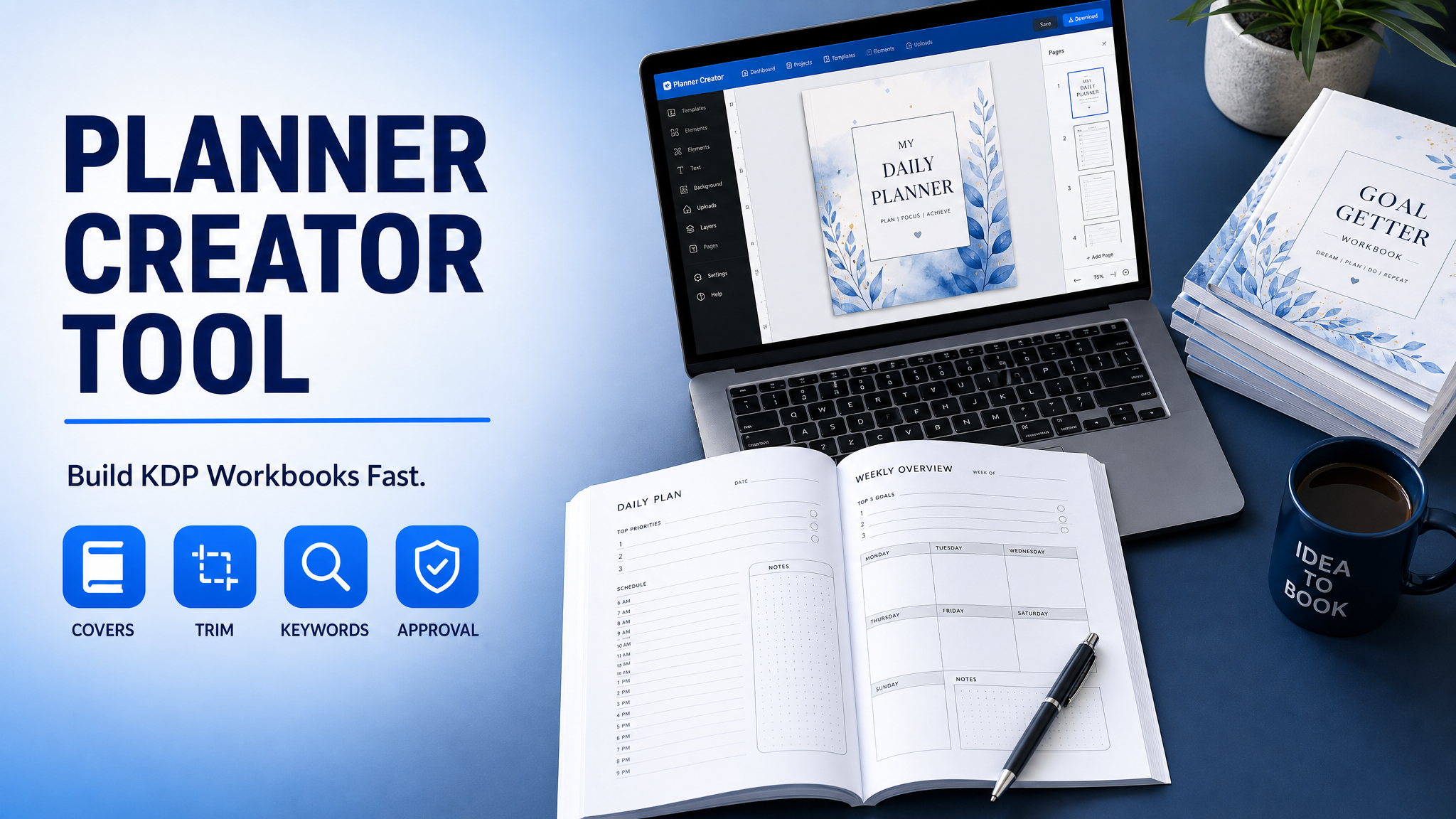
Planner Creator Tool for KDP Workbooks
Skip the theory? Generate a free book preview in about a minute — no signup, no card.
Try it freeIn June 2026, a planner creator tool is the difference between a planner that reaches page 1 and one that gets buried under thousands of lookalikes. KDP still pays 60% of list price minus print cost on paperbacks and 70% royalty on eligible ebooks priced between $2.99 and $9.99, so every layout mistake hits your margin fast.
A planner creator tool is the system you use to create workbook for KDP and build printable planner publishing files without guessing at trim size, bleed, spine width, or keyword targeting. The best tools treat the book like a product funnel: Discovery → Writing → Editing → Design → Covers → Publishing.
Definition: A planner creator tool helps you build niche-specific planner or workbook interiors, generate KDP-safe cover wraps, and package metadata so Amazon can index the book correctly.
What a planner creator tool must do in 2026
Generic daily planners are crowded in 2026. The books still winning are the ones tied to a clear buyer outcome: ADHD focus, teacher lesson planning, budget tracking, fitness logs, faith journaling, small-business operations, or exam prep. That means your tool cannot just draw boxes. It has to help you choose a niche that buyers already search for.
- Find demand before design. Use keyword mining to confirm that people are searching for the planner topic, not just admiring the cover.
- Match the interior to the buyer task. A teacher planner needs weekly lesson spreads, attendance space, and grading columns. A budget planner needs debt trackers, sinking fund pages, and monthly rollover sheets.
- Keep the page count honest. In KDP, extra pages increase spine width and print cost. If a page does not help the buyer use the book, cut it.
- Generate a cover wrap from the final page count. If the spine math changes after your interior changes, your cover must be regenerated.
- Package metadata for Amazon search. Title, subtitle, keywords, and categories need to reflect the exact use case buyers search.
If you want the fastest route, open Planner Creator after validating the niche. KDP Builder's Amazon Intel surfaces real search phrases, competitor gaps, and category opportunities so you are not designing into a dead market.
For deep workbooks, the same logic applies. If you are mapping exercises, reflection pages, or skill-building prompts, jump into Workbook Creator and build around the outcome first, then decorate later.
How to create workbook for KDP without expensive mistakes
If your goal is to create workbook for KDP that actually survives Amazon review and earns reviews, follow this order. Do not start in Canva with a blank page. Start with buyer intent, because the best workbook template KDP sellers use is not a pretty page. It is a repeatable system that aligns with search demand and production rules.
- Choose one buyer. Write down who the book is for and what they are trying to finish in 30 days. Examples: new managers, first-time founders, homeschool parents, or people paying off debt.
- Validate the search phrase. Use Amazon-style keyword research to confirm the phrase has demand. The best titles often mirror how buyers already think, not how publishers describe the product.
- Select the right trim size. For workbooks, 8.5 x 11 gives you room for writing and diagrams. For compact planners, 6 x 9 or 7 x 10 often feels better in hand and keeps print costs down.
- Set the page count before layout. Decide whether the book is 80 pages, 120 pages, or 160 pages before designing the interior. Page count affects spine width, pricing, and the final cost-to-royalty math.
- Build the repeated structure. Use the same header logic, margin logic, and writing space on every spread so the book feels intentional rather than patched together.
- Write the title and subtitle for Amazon search. Keep the promise specific. A title like 'Planner for Entrepreneurs' is weaker than '30-Day Small Business Planner for Weekly Goals, Budgeting, and Content Planning.'
- Export a clean PDF and proof it. Open the PDF at 100% zoom and inspect every page for clipped text, thin margins, and off-center elements before uploading to KDP.
When your workbook uses repeatable page structures, the Workbook Creator saves time by keeping the interior consistent while still letting you tailor prompts, trackers, and lesson blocks to the niche.
Printable planner publishing: what KDP actually checks
Printable planner publishing looks simple until you hit the KDP upload screens. Amazon is usually strict about the details that new publishers rush through: trim size match, bleed consistency, font embedding, margin safety, and cover wrap accuracy. A file can look fine on your screen and still fail because the page dimensions or spine width do not align with the final upload.
In the KDP dashboard, three things catch planner and workbook authors most often:
- Interior PDF size mismatch. Your PDF must match the chosen trim size exactly.
- Bleed confusion. If your design touches the edge, the file needs bleed. If it does not, remove bleed and keep margins safe.
- Cover wrap errors. The spine width is based on final page count and paper type, so even a small page count change can break the file.
Amazon also gives you 3 category slots and 7 backend keyword fields in KDP. That is a huge advantage if you use them with precision. One category should be broad enough to get indexed, one should be niche-specific, and one should match the exact buyer use case. Your keyword fields should support that same structure rather than repeating the title.
Here is the fastest approval-safe sequence:
- Finalize the interior page count.
- Generate the cover wrap at the final dimensions.
- Upload the interior first, then the cover.
- Open the print previewer and inspect the spine, margins, and back cover barcode area.
- Only then enter metadata and submit.
Pro tip: Regenerate the cover wrap every time the final page count changes. Even a 2-page shift changes spine width, and the KDP previewer does not always make the mismatch obvious until late in the process.
If your project is mostly lined pages, habit trackers, or journaling space, use Low-Content Book Creator instead of overbuilding a workbook. That keeps the production stack simpler and reduces the number of pages you need to proof.
Workbook template KDP: template vs custom build
The phrase workbook template KDP sounds convenient, but template sellers usually hit one of two problems: the pages are too generic to rank, or the layout is too rigid to fit a real niche. A strong template is a starting framework, not a finished book. The winning move is to use a template for structure and custom language for buyer intent.
Manual build: You open a design app, guess at the spacing, create every page from scratch, export several drafts, and discover the spine is wrong after upload. You also spend time rewriting the title, description, and backend keywords by hand, often without knowing whether the phrase actually has demand.
KDP Builder workflow: Discovery finds the niche. Writing shapes the promise. Editing cleans repetition. Design keeps the interior readable. Covers generates the full wrap at 300 DPI. Publishing packages the metadata and backend keywords for search. That is the difference between guessing and operating like a publisher.
This is where KDP Builder becomes more than a design shortcut. Its 6-phase AI pipeline — Discovery → Writing → Editing → Design → Covers → Publishing — mirrors the actual publishing workflow, so you do not create one asset that fails the next step. If you have ever finished a beautiful interior only to realize the title was too broad or the cover spine was off by a hair, you already know why that matters.
Use the free tools as support, not decoration. The Book Title Generator helps you spin search-friendly title ideas. The Book Description Generator turns the interior promise into a sales page. The KDP Royalty Calculator lets you test whether your print cost still leaves margin at your chosen price.
Before vs. after: the planner build process
Here is what the same project looks like before and after you use a planner creator tool with a real KDP workflow.
Before:
- Search for a niche by hand and hope it is not oversaturated.
- Guess at page count, then rebuild the cover when it changes.
- Manually rewrite the title, subtitle, and description three times.
- Upload a PDF, get a preview warning, and spend hours hunting for the issue.
After:
- Use Amazon Intel to validate the exact keyword phrase buyers use.
- Build the interior around a fixed trim size and page count.
- Generate a 300 DPI full wrap cover that matches the final spine.
- Use the SEO optimizer for metadata and backend keywords before the upload.
The real time savings are not just design time. You also cut the hidden time that most sellers never budget for: revision cycles, previewer errors, and back-and-forth cover corrections.
Pricing and metadata that move planner sales
Planner pricing in 2026 is less about being cheap and more about being credible. If your planner looks like a serious tool for a specific outcome, buyers will often accept a higher price point than they would for a generic blank journal. In practice, many low-content planners land best around $6.99 to $12.99, while more specialized workbooks and premium planners can support $13.99 to $17.99 if the value is obvious from the thumbnail and subtitle.
Use your print cost, not your gut, to set the price. With KDP paperback royalties at 60% of list price minus print cost, a price that looks good on the sales page can still leave you with weak margin if the interior is too heavy or the trim size is too expensive to print. Before you publish, run the numbers with the KDP Royalty Calculator and make sure your margin still works after print fees.
For metadata, use a simple rule:
- Title: the main keyword and the clear benefit.
- Subtitle: the niche, use case, and outcome.
- Categories: one broad, one targeted, one highly specific.
- Backend keywords: phrases buyers would type, not brand names or repetition of the title.
Do not waste backend keyword space on filler. Seven keyword fields are enough if each one targets a distinct search angle such as audience, use case, seasonality, or tool style. That is where KDP Builder's SEO optimizer becomes useful, because it keeps your backend terms aligned with the book's actual promise instead of stuffing the fields with near-duplicates.
One more dashboard quirk worth knowing: metadata changes do not always appear instantly in browse results or search. If you update categories or keywords, give Amazon time to refresh before you assume the change failed.
The fastest launch checklist for June 2026
- Pick one buyer and one outcome.
- Validate the keyword with Amazon Intel.
- Choose 6 x 9, 7 x 10, or 8.5 x 11 based on how much writing space the buyer needs.
- Lock the page count before designing the interior.
- Create the interior in a repeatable structure.
- Generate the cover wrap from the final page count.
- Set the price using print-cost math, not guesswork.
- Fill all 3 category slots and all 7 backend keyword fields.
- Proof the PDF at 100% zoom.
- Upload, preview, and only then publish.
If you want to move from idea to publishable files faster, the practical next step is simple: use the right tool for the book type. Planner-heavy projects belong in Planner Creator, structured exercise books belong in Workbook Creator, and streamlined journals or trackers belong in Low-Content Book Creator.
Ready to build your first planner or workbook the right way? Create it with 75 free credits, no credit card required, and use KDP Builder's Discovery, Design, Covers, and Publishing workflow to get your file Amazon-ready faster: https://kdpbuilder.com/register.
Turn this idea into a book — free sample
Type a book idea and we'll generate a real cover preview in about a minute. No signup, no card.