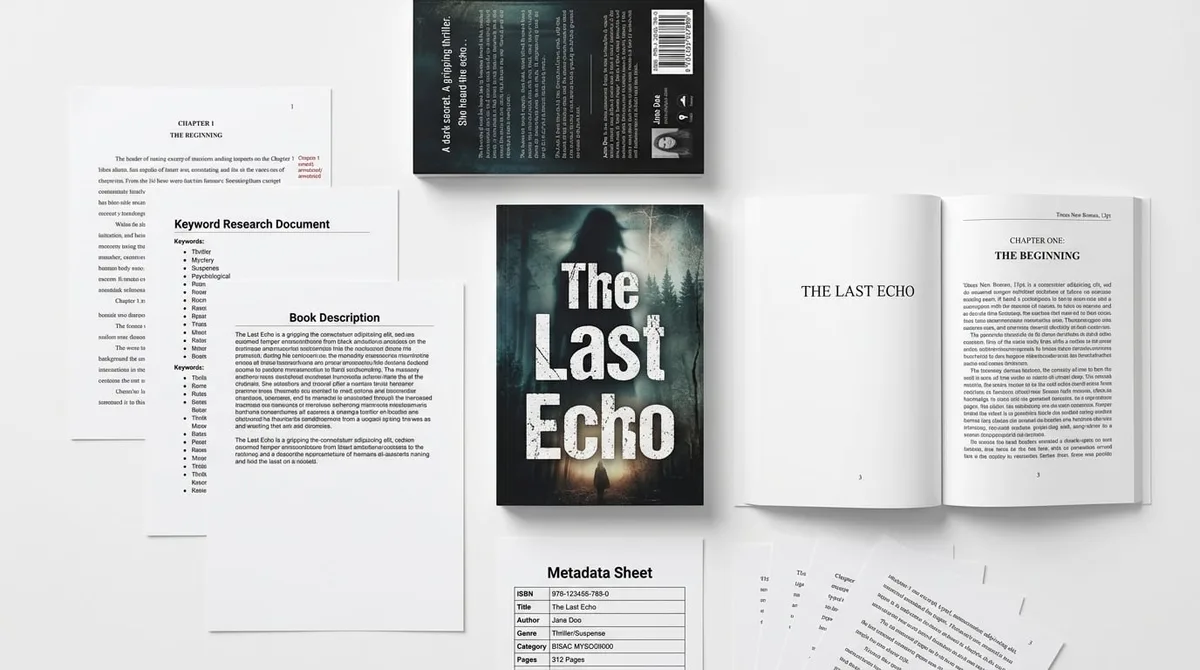
KDP Manuscript Formatting: Trim, Margins, Bleed

Skip the theory? Generate a free book preview in about a minute — no signup, no card.
Try it freeKDP manuscript formatting is where a manuscript becomes a printable book. Before you upload a paperback or hardcover interior, the file has to match the book you selected: the trim size, bleed setting, safe margins, gutter, page count, and PDF export all have to agree. If they do not, the problem usually shows up as clipped art, text too close to the spine, a page-size warning, or a book that technically prints but feels cheap in hand.
This guide is the print-layout pass most first-time publishers skip. We will cover the exact order to set up a KDP interior, when bleed is required, how gutter changes with page count, and what to check before upload. Use it as a formatting checklist, not as decoration advice.
What KDP manuscript formatting actually controls
KDP manuscript formatting is not just font choice or paragraph spacing. It is the full print-interior setup that tells Amazon how your pages should sit on paper: where the page cuts, how far text stays from the edge, how much room the binding consumes, and whether artwork can safely run beyond the trim line.
The important distinction is this: a file can be technically printable and still look amateur. Minimum margins may pass, but the book can still feel cramped. Bleed may be present, but the artwork can still be placed badly. The goal is not merely to avoid a warning; the goal is to make the printed page feel intentionally designed.
Print-ready formatting vs manuscript editing
Manuscript editing fixes language. Print-ready formatting fixes the physical page. Editing can improve clarity, but it will not correct a text block that sits too close to the trim, a page number buried near the spine, or an illustration that gets clipped because the file was exported at the wrong size.
A clean print-ready file accounts for the final object readers hold. That means the trim size, inside binding space, edge treatment, and PDF dimensions need to be correct before export.
Why KDP interiors run into problems
The most common KDP interior problems are predictable: the PDF page size does not match the selected trim, content sits outside the safe area, bleed artwork was exported without bleed dimensions, or the inside margin is too tight for the page count. Those are setup errors, not creative choices.
There is also a design reason to reject your own file before upload: even when a file is accepted by the system, tight gutters, uneven borders, and crowded pages still make the book look rushed.
Product proof: the free KDP Interior PDF Formatter takes an existing manuscript and outputs a correctly margined, gutter-aware, print-ready interior. You can run the check without creating an account.
If your manuscript is already drafted and you want a fast print-safety pass, start with the KDP Interior PDF Formatter before adjusting dozens of pages by hand.
Trim size: the foundation of every KDP interior
Trim size is the final physical size of the printed book after it is cut. If you choose 6 x 9 in, that is the finished size readers hold. The interior PDF must be built around that decision because page width, line length, margins, image placement, and cover dimensions all depend on it.
Trim size affects more than fit. It affects genre expectations, page count, printing cost, and how substantial the book feels. A novel in a familiar trade trim can look natural, while a workbook often needs a larger page so prompts and writing space do not feel cramped. If you change trim late, you usually have to rebuild the interior rather than simply re-export it.
Many authors look for a KDP book size calculator before setting up the file, and that instinct is right: book size comes before layout. For deeper comparison of size choices, use the sibling guide on KDP trim sizes, costs, and best fits.
Common KDP trim sizes
There is no single best trim size for every project. Text-heavy paperbacks often use familiar trade sizes such as 5 x 8 in, 5.5 x 8.5 in, or 6 x 9 in. Journals, planners, coloring books, children’s books, and workbooks may call for larger formats such as 7 x 10 in, 8 x 10 in, or 8.5 x 11 in, depending on use.
| Book type | Common trim direction | Formatting priority |
|---|---|---|
| Novel or memoir | Smaller trade trim | Comfortable line length and gutter |
| Business nonfiction | 6 x 9 in or similar | Readable body text, headings, and tables |
| Workbook or planner | Larger trim | Writing space, prompts, and spread rhythm |
| Coloring book | Often 8.5 x 11 in | Safe line art placement and bleed decisions |
| Children’s illustrated book | Often square or large trim | Image placement, bleed, and page turns |
Why changing trim late breaks the interior
Changing trim size after formatting shifts every visual relationship on the page. Margins no longer sit proportionally. Line breaks change. Page count can move, which then affects the spine and sometimes the gutter requirement. What looked balanced at one size can become crowded or sparse at another.
Lock the trim before detailed formatting starts. If you are still deciding between two sizes, create a short test layout in both sizes before you build the full manuscript.
When to use a KDP book size calculator
A KDP book size calculator is useful when you are comparing trim sizes, estimating page count impact, or checking how size choices influence the finished book. It is most helpful before layout begins, not after the file is complete.
Use it to test fit, compare likely page length, and avoid choosing a trim that makes your content too dense or too sparse.
Margins: the safe space around your content
Margins are the blank space around your page content. They keep text, page numbers, headers, illustrations, borders, and design elements from hugging the edge or getting cut off. KDP has minimums, but minimum does not always mean polished.
There are four margin areas to think about: outside, top, bottom, and inside. The inside margin is the edge nearest the binding. This is where beginners often lose space, because a book does not open perfectly flat like a PDF on a screen.
Design for comfortable reading first, then confirm the technical minimums. A page that technically fits but feels crowded will still read like a template.
KDP minimum margin reference
KDP’s published print requirements can change, so always confirm the current numbers in KDP Help before final export. At the time of writing, the practical baseline most KDP print interiors follow is:
| Interior condition | Minimum outside/top/bottom margin | Inside margin / gutter driver |
|---|---|---|
| No bleed interior | At least 0.25 in | Depends on page count |
| Bleed interior | At least 0.375 in for live content | Depends on page count |
Those are minimums for live content, not design recommendations. For a premium-looking book, body text and important page elements often need more room than the minimum.
Inside vs outside margins
The inside margin is more constrained because the binding consumes readable space. The outside margin can often feel slightly more generous without hurting usability. A page that looks centered on-screen can feel lopsided after binding if the inside space is too tight.
For that reason, a good interior usually gives the inside edge enough room to survive binding, especially when body text, page numbers, captions, or worksheet fields sit near the spine.
Why low-content and workbook pages need extra breathing room
Low-content interiors, journals, and workbooks invite writing, hand movement, and repeated page use. Those pages benefit from wider breathing room so the layout feels calm and usable. If prompts, lines, or boxes are pushed too close to the edge, the page feels busy and harder to use.
A workbook is not just printable; it is interactable. Leave room for the hand, the binding curve, and the visual rest the page needs.
Gutter: the margin beginners underestimate
The gutter is the extra inside margin that compensates for binding. It protects content from disappearing into the spine. In KDP manuscript formatting, gutter planning is usually tied to page count: thicker books need more inside space.
For a deeper look at page count, spine behavior, and print limits, use the sibling guide on KDP minimum page count, rules, and spine math.
KDP gutter guide by page count
KDP’s inside margin requirements increase as page count rises. Use the table below as a planning reference, then verify against KDP’s current help documentation before final upload.
| Page count | Typical minimum inside margin | Studio recommendation |
|---|---|---|
| 24–150 pages | 0.375 in | Use more for workbooks or dense nonfiction |
| 151–300 pages | 0.5 in | Check inner-page readability on spreads |
| 301–500 pages | 0.625 in | Avoid captions or page numbers near the spine |
| 501–700 pages | 0.75 in | Expect a visibly larger inside margin |
| 701–828 pages | 0.875 in | Test carefully; thick books are unforgiving |
Why thick books need more gutter
As page count rises, the page block becomes thicker and the inner pages sit deeper into the curve of the binding. Content near the spine becomes harder to see, especially near the beginning and end of the book. More gutter compensates for that physical shift.
If you use the same inside spacing for a 40-page booklet and a 240-page paperback, the longer book will feel tighter on the binding side and may be harder to read.
How poor gutter formatting makes a book feel cheap
A bad gutter shows up as text that leans too close to the spine, captions that disappear into the fold, or visual imbalance across facing pages. Readers may not name the problem, but they feel it. The book seems rushed.
The free KDP Interior PDF Formatter is built to turn an existing manuscript into a correctly margined, gutter-aware, print-ready interior. It is useful when the binding side feels tight and you want a quick check before upload.
If the inside margin looks questionable in your draft, run the file through the formatter before you spend hours nudging pages one by one.
Bleed: when your design touches the edge
Bleed is extra artwork beyond the trim line so edge-to-edge designs print cleanly. KDP print books with bleed interiors require extra page size beyond the selected trim: 0.125 in added to the outside edge and 0.125 in added to the top and bottom. That extra area gives the printer room to cut without leaving a white sliver at the edge.
Use bleed when a design reaches the edge of the page. This includes full-page illustrations, coloring pages with edge-to-edge art, full-page backgrounds, pattern fills, image books, and decorative pages where the artwork intentionally runs to the cut line.
Do not use bleed just because it sounds more professional. Text-only books with no edge-to-edge design usually do not need it, and adding it unnecessarily makes the file setup more complicated.
Bleed vs no bleed
Bleed changes the required PDF page dimensions. A no-bleed interior is sized exactly to the trim. A bleed interior is larger because it carries artwork beyond the cut area.
| Example trim | No-bleed PDF size | Bleed PDF size |
|---|---|---|
| 6 x 9 in | 6 x 9 in | 6.125 x 9.25 in |
| 8.5 x 11 in | 8.5 x 11 in | 8.625 x 11.25 in |
If you choose bleed in setup but export a no-bleed-sized PDF, the dimensions will not match. If you export bleed artwork but set up the project as no bleed, you can run into unexpected cropping or page-size errors.
Full-page art, borders, and background patterns
Any design element that touches the edge should be treated like bleed content. That includes full-page illustrations, page backgrounds, decorative frames that extend to the edge, and colored blocks that fill the page.
Background patterns are especially unforgiving because a small mismatch is obvious. A repeated texture that stops short of the edge looks unfinished, and a border that lands too close to the trim can feel visually tense.
Why thin borders near the edge often fail
Thin borders are one of the fastest ways to expose a formatting mistake. If a line sits too close to the trim, even a tiny cut variation can make it look uneven or clipped. The closer the border sits to the edge, the less room the printer has to absorb normal manufacturing variation.
If you want a border, keep it safely inside the trim unless it is intentionally built as bleed art with enough oversize. Otherwise, it may print looking accidental rather than precise.
How to format a book for KDP without layout surprises
The correct setup order prevents most rework. Do not start by styling chapter headings or placing art. Start with the physical book, then build inward.
- Choose the trim size. Every other setting depends on the final book dimensions.
- Decide whether the book needs bleed. Use bleed only when content reaches the edge.
- Set margins and gutter. Base the inside margin on page count and book type.
- Build the page system. Style headings, body text, captions, page numbers, and white space.
- Place images and page elements. Keep live content inside the safe area.
- Export a print-ready PDF. Preserve page size, embed fonts, and avoid screen-only presets.
- Preview the file. Check clipping, spread balance, blank pages, and page order.
- Upload only after the PDF matches the intended print specs.
A KDP template generator can help only if the template reflects the correct trim, bleed, and gutter rules. Templates save time when they match your project. They fail when they encourage copy-paste layouts without considering readability or binding behavior.
The KDP Interior PDF Formatter belongs in this workflow when you need to convert or check the file before upload. It is useful for alignment, page-size confirmation, and print-safe preparation. It does not replace design judgment; it helps enforce the technical foundation.
If you are moving between trim, bleed, and gutter choices, start from the file you already have and use the KDP Interior PDF Formatter to confirm the interior is print-ready before upload.
Where a KDP template generator helps
A template generator helps when you want a starting point that already reflects the chosen trim and basic print rules. It can save time on page setup, guide margin placement, and reduce obvious sizing errors. For simple interiors, that is useful.
It is especially helpful when you want to test a layout quickly before committing to a full build. Use it as a base, not as the final design decision.
Where templates fail
Templates fail when they ignore your content type. A template that works for a novel may be wrong for a workbook. A layout that looks fine at one page count may feel too tight at another. Templates also fail when users trust them more than the actual book flow, resulting in awkward spacing and weak hierarchy.
Studio check: before final export, print three sample pages at actual size on a home printer. The paper and ink will not match KDP production, but the page will reveal whether the inside margin feels tight, the text block feels dense, or a border sits too close to the trim.
KDP interior formatting guide by book type
Different book types need different formatting priorities. The same margin setting that works for a straight text novel may be wrong for an activity book, and the same bleed rule that fits a color-heavy children’s title may be unnecessary for clean nonfiction.
AI workbook generator and AI coloring book generator users still need print-safe interiors. The key issue is not where the content originated; it is whether the final layout respects binding, trim, margins, and edge behavior.
For a quick designed sample or layout test, use the free no-signup KDPBuilder flow. If you only need to check a manuscript already in progress, format your interior free is the faster route.
Novels and text-heavy nonfiction
For novels and most text-heavy nonfiction, readability comes first. Keep line length comfortable, avoid overly tight margins, and make sure the gutter increases appropriately as page count grows. Headers and page numbers should be consistent and restrained.
These books usually do not need bleed unless there are full-page illustrations, section openers, or design pages that reach the edge.
Workbooks, journals, and planners
These books need more breathing room than a pure text title. Leave space for handwriting, checkboxes, lines, prompts, and repeated use. If the book includes prompts near the binding, verify that the inside margin stays generous enough for real-world writing.
Planners also need careful page rhythm. A cluttered spread may technically fit, but it can make the page feel overbuilt and hard to use.
Coloring books and illustrated interiors
Coloring books and illustrated interiors are sensitive to bleed and edge placement. Large art that touches the page edge must be built with bleed, while interior line art should stay comfortably inside the safe area so nothing important gets cut off.
These books often benefit from wider margins than text-only titles because the white space is part of the experience. The page should feel open enough for coloring or visual focus.
| Problem | What usually causes it | Best fix |
|---|---|---|
| Text hugs the spine | Gutter too small for page count | Increase inside margin/gutter and re-export |
| Art is cut off at the edge | Bleed missing or export sized to trim only | Rebuild as bleed interior and export to bleed dimensions |
| PDF page size mismatch | Trim selected in KDP does not match source file | Set the document to the chosen trim size before export |
| Border looks uneven | Thin line placed too close to trim | Move border inward or redesign as proper bleed art |
| Random blank pages appear | Section breaks or odd/even page settings | Review page order before export and again in preview |
Pre-upload checks before sending your manuscript to KDP
Before upload, run a final check on the exact elements that cause most print problems. The PDF should match the selected trim size, the bleed setting should match the interior, fonts should be embedded, margins should clear the safe zone, no live elements should sit outside the printable area, the page count should be correct, and there should be no blank-page surprises.
This is also where a book page calculator can help, because page count affects gutter, spine behavior, and print cost expectations. A generic KDP calculator is only useful when it connects dimensions, page count, bleed, and cover or interior requirements in one workflow. Isolated numbers are not enough.
Use the KDP Upload Checklist as the final step before publishing. It helps you catch small issues before they turn into upload delays or preview corrections.
PDF export settings
Export as a print-ready PDF, not a screen-only file. The file should preserve page order, embed fonts, and keep image quality stable. Most problems come from mismatched dimensions or low-quality export presets that compress the interior too aggressively.
- Confirm the PDF page size matches the selected trim and bleed setting.
- Embed fonts so text does not reflow or substitute unexpectedly.
- Use high-quality image export settings for illustrated interiors.
- Check that page numbers, headers, and footers stay inside safe margins.
- Open the exported PDF before upload and inspect it at 100% zoom.
Previewer errors to fix immediately
If the previewer shows clipped text, page objects outside the safe area, or a PDF page size mismatch, stop and fix the source file. Do not try to patch a fundamentally wrong interior by nudging one element. Previewer warnings are usually symptoms of a setup issue, not isolated mistakes.
The most common immediate fixes are adjusting the gutter, moving content inward, correcting the bleed export, or rebuilding the PDF at the proper trim size.
When to reformat instead of patching
Reformat instead of patching when several pages are affected, when the trim changed late, or when the bleed/no-bleed decision was wrong from the start. If you keep layering corrections onto a flawed layout, the file becomes harder to trust and more likely to contain hidden inconsistencies.
Sometimes the fastest path is a clean rebuild. That is especially true if the book looks uneven across multiple spreads or if the inside margin feels wrong throughout the interior.
Common KDP formatting mistakes that make books look generated
The mistakes that make a book look generated are usually not subtle: cramped text blocks, inconsistent headers, bad gutter, full-page art without bleed, borders too close to trim, and interiors dropped into a template with no review. KDP acceptance does not equal professional presentation.
Readers see tight margins, weak spacing, and odd page balance as design flaws, not technical details. KDPBuilder’s point of view is simple: the goal is not just upload success; the goal is a book that earns trust when opened.
Accepted but ugly
A book can pass basic upload checks and still feel cheap in hand. This happens when the margins meet the minimum but the page looks crowded, when the gutter is technically acceptable but visually too tight, or when artwork is inside the page but too close to the edge to feel safe.
Acceptance only tells you the file is usable. It does not tell you whether it is pleasant to read.
The difference between generated and designed
Generated-looking interiors have repetitive spacing, obvious patterns, and weak hierarchy. Designed interiors show deliberate choices: the text sits comfortably, the white space is balanced, the binding is respected, and the edge treatment matches the content type.
The difference is visible. A well-formatted KDP interior feels like it belongs to the subject; a template-looking file feels detached from it.
FAQ
What is the correct KDP manuscript formatting setup for a paperback?
The correct setup starts with choosing the trim size, then deciding whether the interior needs bleed, then setting margins and gutter based on page count and content type. Your final PDF must be print-ready and must match the selected trim and bleed setting. There is no universal setting that works for every paperback, so the layout should be built for the specific book.
How do I format a book for KDP with bleed?
Choose a trim size first, then enable bleed only if your artwork or background reaches the page edge. KDP print books with bleed interiors require extra page size beyond the selected trim: 0.125 in added to the outside edge and 0.125 in added to the top and bottom. Export the final file as a print-ready PDF with the correct bleed dimensions.
What is the difference between margin and gutter in KDP?
Margins are the general safe space around the page content. The gutter is the extra inside margin near the binding that accounts for the curve and thickness of the book. Gutter becomes more important as page count rises because thicker books need more inside space to keep content readable.
Do I need a KDP template generator or can I format the file myself?
You can format the file yourself if you understand trim, bleed, margins, and gutter. A KDP template generator can help as a starting point, but it should match the exact project settings and should not replace design judgment. For polished results, use the template as a guide and still check the final layout manually.
Can I change trim size after my manuscript is formatted?
You can, but it usually means reformatting the interior rather than making a small edit. Changing trim size affects line length, spacing, page count, and often cover dimensions. If the change is significant, rebuild the layout so the book stays balanced and readable.
Why does KDP say my margins or bleed are outside the printable area?
That warning usually means the PDF page size does not match the trim and bleed setup, or some content sits too close to or beyond the safe area. It can also happen when the gutter is too narrow for the page count or when bleed was added in the file but not enabled in setup. Check the source layout, export settings, and page dimensions together instead of adjusting one element at a time.
Final formatting pass
Before you upload, do one last disciplined pass: trim locked, bleed decision correct, gutter matched to page count, margins comfortable, fonts embedded, PDF dimensions verified, and preview checked page by page. That is the difference between a manuscript that merely exists as a PDF and an interior that behaves like a printed book.
If you want to confirm a file before upload, run it through the KDP Interior PDF Formatter. It is free to check, requires no account, and is designed for the exact margin, gutter, bleed, and trim problems this guide covers. If you want a broader no-signup workflow for early-stage planning, try KDPBuilder free.
Turn this idea into a book — free sample
Type a book idea and we'll generate a real cover preview in about a minute. No signup, no card.