KDP Cover Rejected? Every Rejection Reason & Exactly How to Fix It
Skip the theory? Generate a free book preview in about a minute — no signup, no card.
Try it freeA cover rejection from Amazon KDP feels opaque — the email quotes a guideline, points you to a help page, and leaves you to figure out what actually went wrong. In practice, almost every rejection comes down to one of nine specific causes, and each has a precise fix. This guide walks through all of them: the exact measurement rules, why the check exists, and how to resubmit a file that passes.
First: Read the Rejection Type
KDP rejects covers in two ways. Automated file checks happen minutes after upload — Print Previewer flags dimension, bleed, spine, and resolution problems before you can even submit. Human review rejections arrive by email after submission and usually concern content: title mismatches, trademarks, claims, or print quality. The fixes below are grouped by how often they occur — the first four account for the overwhelming majority of technical rejections.
The 9 Rejection Reasons (and the Exact Fix for Each)
Cover file dimensions don’t match your trim size and page count
The #1 rejection. A paperback cover isn’t just the front — it’s one flat file: back cover + spine + front cover + 0.125″ bleed on every outside edge. The spine width depends on your exact page count and paper type, so a cover built for 120 pages fails the moment your interior becomes 128 pages.
The fix: Recalculate the full wrap size with KDP’s formula: spine = page count × paper multiplier (0.002252″ for white, 0.0025″ for cream, 0.002347″ for standard color). Full width = bleed + back trim + spine + front trim + bleed. Rebuild the cover at that exact pixel size at 300 DPI — don’t stretch an old file.
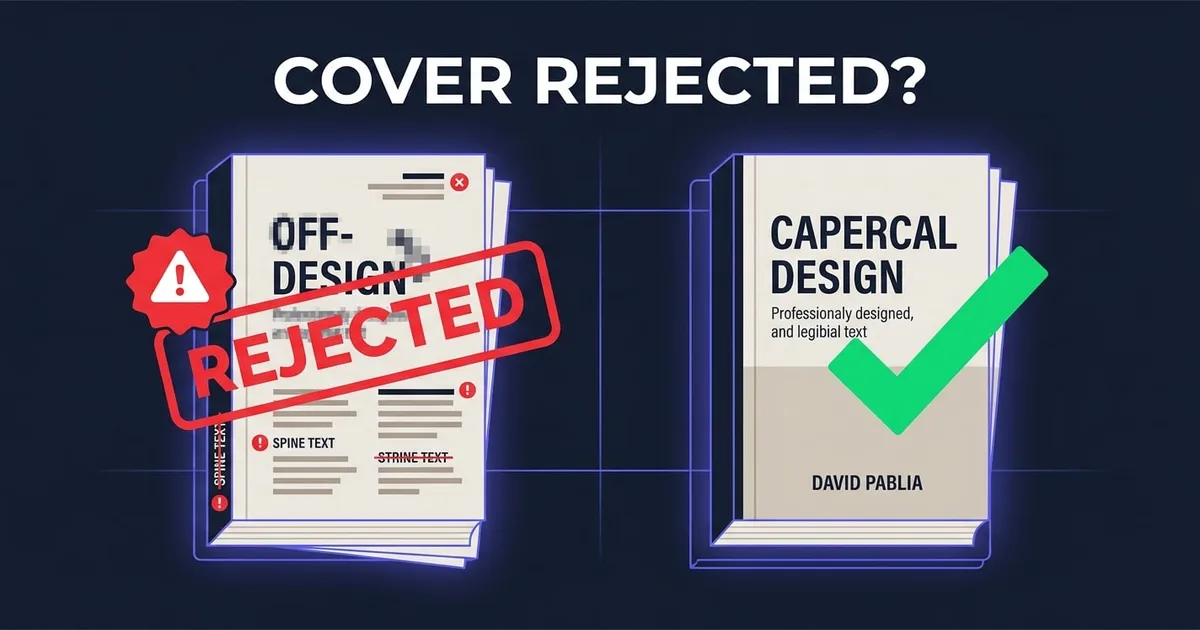
Spine text on a book under 79 pages
KDP prohibits spine text on paperbacks with fewer than 79 pages — the spine is physically too narrow to print text reliably. Even at 79–150 pages, text must fit with at least 0.0625″ clearance on each side of the spine, which rules out anything but small type.
The fix: Under 79 pages: remove spine text entirely and use a solid color or continued artwork. Between 79 and ~150 pages: shrink the title to fit within the safe zone, or drop the author name and keep only a short title. When in doubt, a clean text-free spine is never rejected.
Text or critical art inside the trim/fold zones
Printers cut with up to 0.125″ of mechanical variance. Anything within 0.25″ of a trim edge — or within 0.0625″ of the spine folds — risks being cut off or wrapping onto the wrong panel, and KDP’s automated check flags it.
The fix: Keep all text and logos at least 0.25″ inside the trim line, and never let front-cover text cross into the spine area. Background art should extend through the bleed; important content should stay well inside the safe zone.
Missing or wrong bleed
If your artwork stops exactly at the trim line, any cutting variance leaves white slivers along the edge — so KDP requires 0.125″ of bleed beyond the trim on the three outside edges of each panel.
The fix: Extend the background artwork 0.125″ past the final trim on all outer edges. Don’t just add white margin — the art itself must continue into the bleed area.
Resolution below 300 DPI or upscaled images
KDP requires print files at 300 DPI. A cover built at screen resolution (72–96 DPI) or an image stretched to size will be rejected for low quality, or worse — approved and printed blurry.
The fix: Build the cover natively at 300 DPI at the full wrap dimensions. For a 6×9″ book with 120 pages, that’s roughly 3,847 × 2,850 pixels for the full wrap — not a 1,600px image scaled up.
Covering or crowding the barcode zone
KDP prints its own ISBN barcode in the lower-right area of the back cover — a 2″ × 1.2″ box positioned 0.25″ from the trim edges. Text or busy artwork in that zone gets flagged, and dark backgrounds there can make the barcode unscannable.
The fix: Leave the lower-right back-cover area clear of text. If your background is dark or busy, place a white or light rectangle in the barcode zone so the printed barcode scans cleanly.
Transparency layers or the wrong file format
Print covers must be flattened PDFs. Transparent layers, embedded fonts that fail to flatten, RGB profiles that shift on conversion, or uploading a PNG where a PDF is required all trigger automated rejections.
The fix: Export a single flattened PDF with fonts embedded or outlined and no transparency. If you designed in RGB, review a soft proof — saturated blues and purples shift most in print.
Hardcover wrap built with paperback math
Case-laminate hardcovers are a different beast: the file includes wrap-around board allowance and hinge gaps, so the full canvas is dramatically larger than a paperback wrap for the same trim size. Reusing paperback dimensions is an instant rejection.
The fix: Use KDP’s hardcover template generator for your exact trim and page count — the file adds roughly 1.4″ of wrap and hinge on each dimension. Keep text clear of the hinge zones next to the spine.
Content policy: misleading claims, brands, or prohibited elements
Not every rejection is technical. Covers with trademarked characters or brand names, review quotes that can’t be verified, “best seller” claims, prices printed on the cover, or a title that doesn’t match the metadata all fail human review.
The fix: Match the cover title exactly to your KDP metadata title, remove any brand references you don’t have rights to, and drop unverifiable claims. If you cite a review, it must be real and attributable.
The Resubmission Checklist
Before you upload again, run this five-point check: (1) the full wrap is rebuilt at the exact size for your current page count — not the draft you started with; (2) every piece of text sits at least 0.25″ inside trim lines and clear of the spine folds; (3) artwork extends 0.125″ past trim on all outer edges; (4) the file is a flattened, 300 DPI PDF with no transparency; (5) the cover title matches your metadata title word for word. Then open Print Previewer and resolve every warning it shows — a file that’s clean in Previewer passes technical review.
One trap to watch: any interior change that alters page count invalidates your cover. Adding a copyright page, changing trim size, or switching from white to cream paper all shift the spine width. Always finalize the interior first, then build the cover against the final page count.
Or Skip the Math Entirely
Every one of these rules is deterministic — which means software can enforce them. KDPBuilder builds covers against your book’s actual final page count and trim size: the wrap dimensions, spine width, bleed, and barcode clearance are calculated automatically, spine text is blocked on books too thin to carry it, and every export runs through a compliance gate before you download. It’s the difference between debugging a rejection email and uploading a file that passes the first time. See what a compliance-checked package looks like, or start with the free KDP calculators if you’re building the cover yourself.
Frequently Asked Questions
How long does KDP take to review a resubmitted cover?
Most resubmissions are reviewed within 24–72 hours. The automated file check (dimensions, bleed, spine) happens within minutes of upload in Print Previewer, so always fix every Previewer warning before submitting — that’s where the majority of rejections are caught.
What is the minimum page count for spine text on KDP?
79 pages. Below that, KDP prohibits any text on the spine because the printable area is too narrow. Between roughly 79 and 150 pages, spine text must still fit with 0.0625″ clearance on each side, so keep it short and small.
How do I calculate my KDP cover size?
Full wrap width = 0.125″ bleed + back cover width + spine width + front cover width + 0.125″ bleed. Spine width = page count × 0.002252″ (white paper), 0.0025″ (cream), or 0.002347″ (standard color). Height = trim height + 0.25″ total bleed. Everything at 300 DPI.
Why does my cover pass Print Previewer but still get rejected?
Print Previewer only runs the technical checks. Human review can still reject for content reasons: title mismatch with metadata, trademarked material, unverifiable claims, or low print quality from upscaled images. Check the rejection email — it names the specific violation.
Can I publish a paperback with a blank spine?
Yes — a spine with only color or continued artwork is always acceptable at any page count. It’s the safest choice for books under 150 pages where text clearance is tight.
Tired of the rejection loop? Create your first KDP-ready book free — cover, interior, and metadata, all compliance-checked. No credit card required.
Turn this idea into a book — free sample
Type a book idea and we'll generate a real cover preview in about a minute. No signup, no card.